Installation notes
For ROOM 3D communications platform for macOS
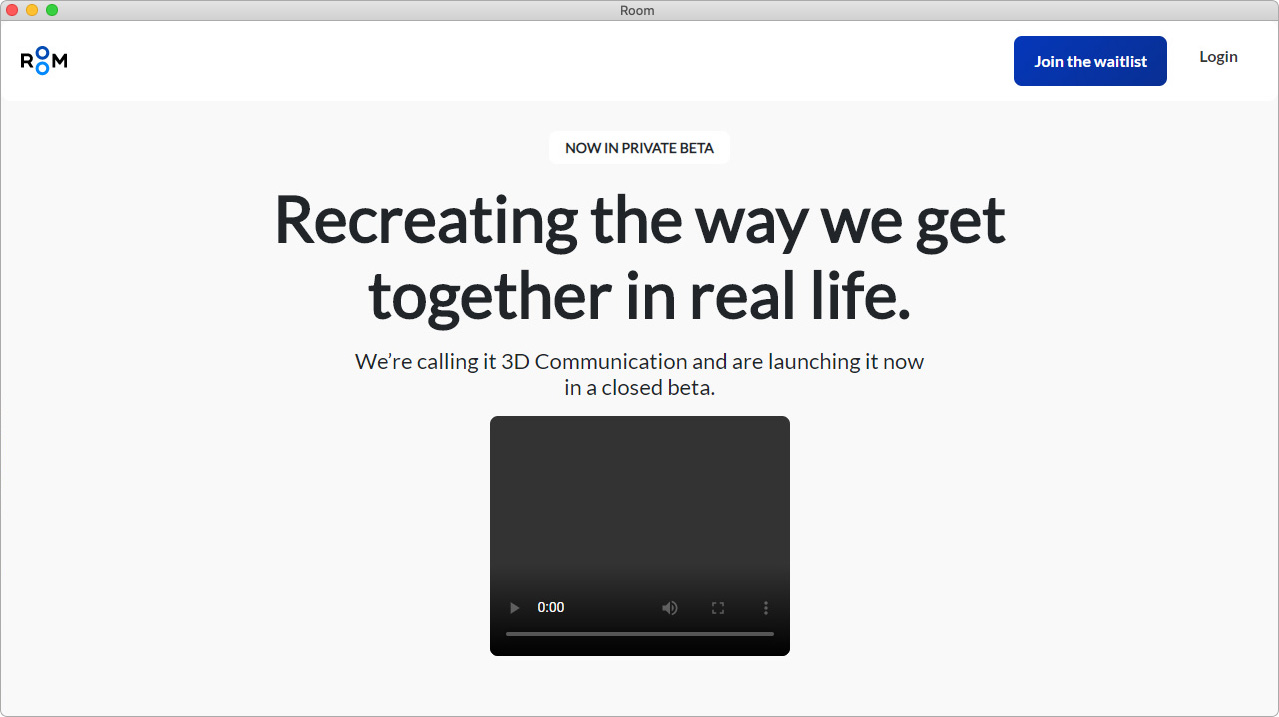
Step 1. Click the download link with the Apple logo.
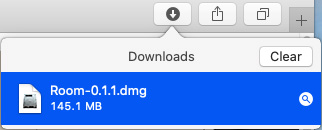
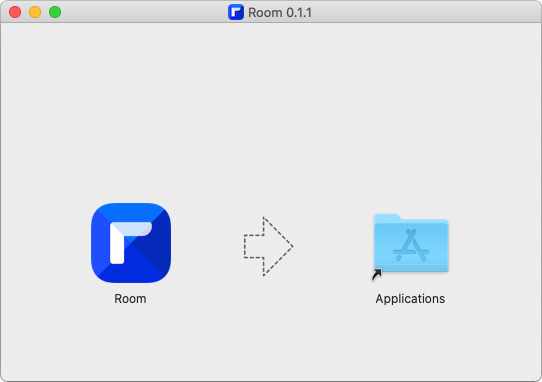
Step 2. After downloading the installer, run the application, place it in the Applications folder.
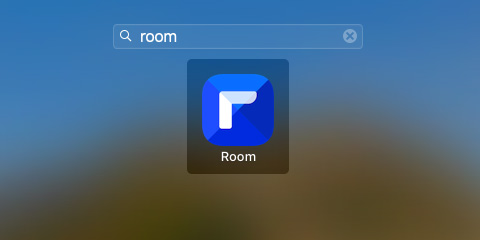
Step 3. When finished, type room in Launchpad.
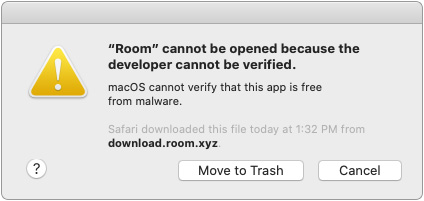
Step 4. Trying to run ROOM, you will get the following message.
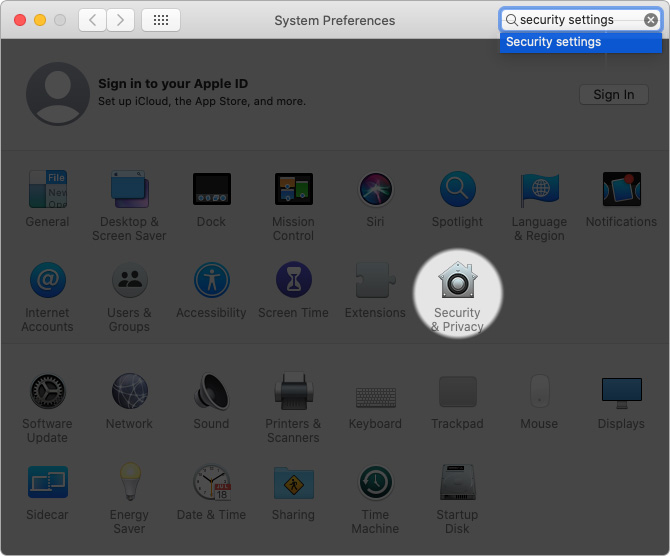
Step 5. To enable ROOM running, open System Preferences, then Security & Privacy.
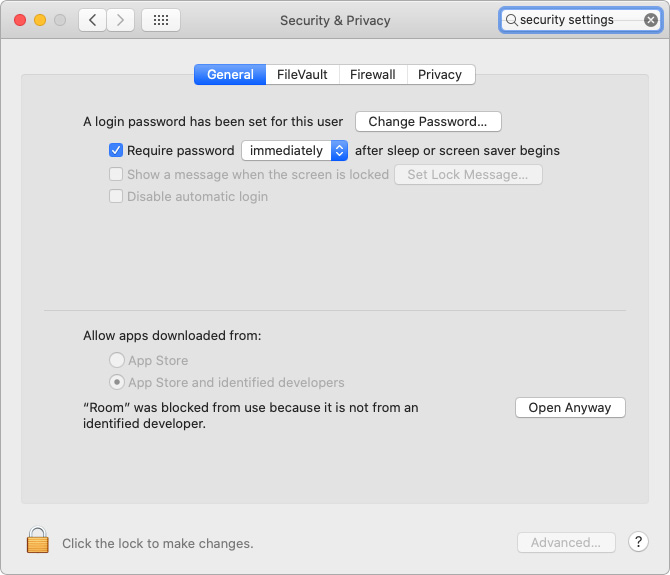
Step 6. Under the General tab you will see the blocked application. Click Open Anyway
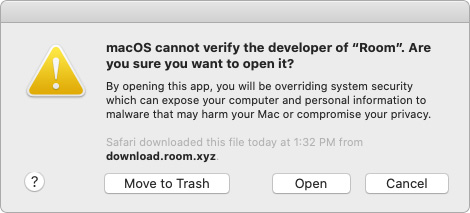
Step 7. The system will ask for confirmation, select Open.
Step 8. Following these procedures, you will be able to run ROOM application without any further ado.